


YouTube OSINT Guide: Search Operators and Investigation Tools
Hello, everyone. Today we’re talking about YouTube.
I think we can all agree that video is a more visual and often more trustworthy source of information. Of course, there are staged clips and outright fakes. But on average, something captured on video feels far more convincing than the same event described in plain text.
That’s also one reason why video-based misinformation is so effective—but that’s something we’ll leave for another time. Another important point is that YouTube contains an enormous amount of information. And that means one thing: we need to get better at searching it efficiently.
Alright, I’ll stop stating the obvious.
The core idea here is simple: when a huge amount of information accumulates in one place, finding what you actually need can become surprisingly difficult.
So what do you do about it? Sure, you can trade time for results—scrolling endlessly through search results, hoping to stumble upon something useful within the first hundred videos. Because by the second hundred… you’re probably already tired and closing the browser anyway.
But if you’re reading this, chances are you don’t like that approach. I don’t either.
So today we’re going to look at how to search YouTube more effectively. Specifically, we’ll explore how search actually works, what search operators exist, and how to use them properly. On top of that, we’ll also go through a few useful tools that can make the process even easier.
Search Mechanics
If you want to get better at using YouTube search than the average user, the first thing you need to understand is how it actually works—not how the user works, but how the system itself is designed. In other words, you need to look under the hood.
This isn’t just a theoretical exercise either. Understanding the mechanics of search can noticeably improve both your speed and the accuracy of your results.
When it comes to YouTube search, there are two key areas to consider: how the platform indexes content, and how it interprets and processes search queries.
How YouTube indexes videos
Let’s start with indexing.
A good way to think about it is to compare it to a library catalog. In a library, every book is organized using metadata—things like topic, author, publication year, and more. The catalog also tells you exactly where to find the book on the shelf.
Something very similar happens on YouTube. When a video is uploaded, the platform analyzes it and extracts a range of signals that describe what the video is about. These signals are then stored in a database and linked to that specific video.
When you perform a search, YouTube doesn’t actually scan through videos in real time. Instead, it searches this indexed database. Each video is then scored based on how well its signals match your query. That relevance score determines where it appears in the results.
So the next step is to understand what kind of information YouTube actually collects during indexing.
- Video title. This is one of the strongest ranking signals. YouTube uses the title to determine the main topic of a video based on its keywords. Most creators already understand this and try to pack titles with relevant search terms.
What’s less obvious is that YouTube doesn’t really “interpret” the title in a human sense. It doesn’t analyze grammar or pay attention to things like prepositions or word forms. Instead, it primarily focuses on matching key terms. - Video description. The description is the second most important element. During indexing, YouTube treats it as a short, creator-written summary of the video’s content, and uses it to better understand context and topic relevance.
- Tags. There’s a long-standing debate in SEO circles about how important tags really are and how many should be used. The only broad agreement is that they still matter—but less than title or description. Tags are designed to act as keyword labels for the video. However, since they can be easily manipulated, their weighting is lower in the ranking system. That said, tags become more useful when they reinforce keywords already present in the title, description, and subtitles.
- Subtitles. If subtitles aren’t provided by the creator, YouTube automatically generates them. In both cases, subtitles are indexed. They help the system understand what is actually being said in the video, which can reveal key topics even if they never appear in the title or description.The exact impact of subtitles on ranking isn’t fully transparent, but they clearly contribute to both indexing and relevance.
- Channel name. The channel name is also part of the indexed metadata. That’s why including a channel name in a search query can be useful if you’re trying to find content from a specific creator.
- Viewer engagement. Engagement signals include views, likes, comments, shares, and watch time. These factors influence rankings by indicating how users interact with a video. In general, higher engagement suggests higher quality and relevance, which can improve search position. Even comment text is indexed. It’s unlikely to be a major ranking factor on its own, but it still contributes to the overall signal set in smaller ways.
How YouTube processes a search query
Now let’s look at what actually happens when you type something into the search bar on YouTube. We can break the process down into several stages.
The First step is parsing the search query and extracting its core meaning. Here’s what happens at this stage:
- The search query is split into individual words. At the same time, the system detects whether any search operators are present. If they are, they are treated as special commands that modify how the search behaves.
- Words that do not carry meaningful semantic value are removed. Depending on the language, this can include prepositions, articles, and similar function words. The system also identifies the language of the query, so all processing is adapted accordingly. In addition, YouTube supports synonym expansion—if there are no strong matches for the exact keywords, it will search for semantically related terms.
- The remaining words are normalized into their base forms (lemmatization). For example, nouns are reduced to singular form (e.g., “videos” → “video”), and verbs are reduced to their base form (e.g., “running” → “run”).
- Spelling is checked, and any detected typos may be automatically corrected before the query is processed further.
The Second step is understanding user intent. In other words, YouTube tries to determine why the query was made and what kind of result the user is actually looking for. Search intent is generally divided into three categories:
- Informational queries. The user is looking for information on a topic rather than a specific video.
Example: “how to build a nuclear reactor at home” — the intent here is to understand a process or concept. - Navigational queries. The user is trying to find a specific video, channel, or content from a known creator.
Example: “Pulse OSINT Telegram video” — the query clearly targets a particular piece of content by a specific author. - Transactional queries. The user is looking for a type of content rather than a specific result.
Example: “funny cats” — the intent is simply to watch entertaining content, with no strict requirements beyond the category itself.
The Third step: Matching against indexed data. At this stage, YouTube takes the processed user query and compares it against its index. It then searches for videos, channels, and playlists whose metadata contains the relevant keywords. If search operators were included in the query, they are applied at this stage to either narrow or broaden the scope of the search results.
The Fourth step: Ranking and filtering results. Once all matching results have been retrieved, YouTube evaluates each one based on relevance and overall quality.
At this stage, additional filtering layers are applied. One of them is compliance with platform policies. If a video violates YouTube’s rules, it may be fully removed from search results or significantly demoted in ranking, even if it is highly relevant to the query.
Another important factor is search personalization. YouTube takes into account the user’s watch history and previous search behavior, which can noticeably influence the results shown for the same query.
After all signals and filters are applied, the final ranked list of results is presented to the user.
And that’s a brief overview of how YouTube search works. Even though this is a simplified explanation focused on the core mechanisms, it’s already enough to build a solid mental model of how the system can be used in OSINT workflows.
YouTube Search Filters
Before diving into search operators or third-party tools, don’t forget that YouTube already includes a fairly capable set of built-in search filters.
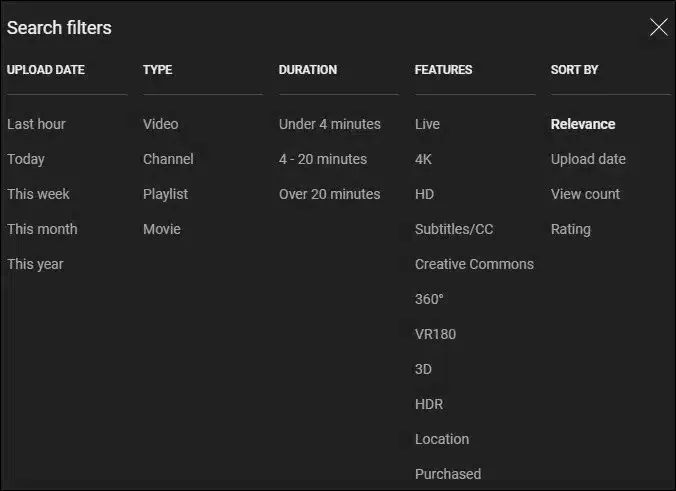
In many cases, these filters alone are enough to cut a massive list of results down to a manageable size.
You can filter results by upload date, content type, duration, and various features such as subtitles, geolocation tags, and live streams. You can also sort results by upload date, view count, or relevance.
One useful detail that many people overlook is that some of these filter values can also be entered directly into the search bar. When used this way, they effectively function as search modifiers.
Another useful thing to keep in mind is that many of these filter values can be entered directly into the search bar, where they effectively act as search operators.
For example:
osint, shorts, this week
would return OSINT-related Shorts uploaded during the current week.
Search Operators: YouTube Dorks
Let’s dive into search operators.
If you’ve ever worked with Google Dorks, you’ll notice that many YouTube operators look very familiar. That’s because YouTube search shares a lot of its logic with Google Search, and many operators work in a similar way.
That said, the two systems aren’t identical. There are important differences, unsupported operators, and a few quirks that are worth understanding before relying on them for OSINT and investigative research.
Quotation Marks (" ")
Quotation marks are used for exact-match searches. Just like in Google Search, if you know the exact title, phrase, or wording you’re looking for, enclosing it in quotation marks tells YouTube to prioritize results containing that exact text.
The idea is simple, but there are a few important nuances:
- If you place quotation marks around only part of your query, that word or phrase becomes a required search term. In other words, YouTube will strongly favor results that contain the quoted text rather than treating it as just another keyword.
- Unlike Google, which tends to enforce exact matches quite strictly, YouTube’s interpretation is often more relaxed. Even when quotation marks are used, the platform may still return results containing closely related word forms or minor variations. In some cases, highly popular videos with similar titles may also appear, even if they don’t perfectly match the quoted phrase.
Plus (+) and Minus (-)
These operators can be used to refine a search query by specifying which keywords should be included or excluded from the results. The plus sign (+) indicates that a particular keyword must be present in the results. For example, if you have a general idea of the topic you’re researching but also know a specific keyword that accurately reflects the information you’re looking for, you can add that keyword to the query using a plus sign. This helps narrow the results and focus the search on more relevant content.

The minus sign (-) works in the opposite way. If there’s a keyword that you know is not relevant to your search, place a minus sign in front of it. Any results containing that term will be excluded from the search results.
Pipe Operator (|)
| operator acts as a logical OR. When you separate multiple terms or queries with a pipe operator, YouTube will return results related to either of them, as well as results that contain both.
This operator is actually more useful than it might seem at first glance. One of its most practical applications is searching for synonyms, alternative spellings, or closely related terms within a single query.
While YouTube is capable of identifying synonyms on its own, there’s no guarantee that it will choose the ones you’re interested in. By explicitly specifying alternative terms yourself, you gain much more control over the search and reduce the chances of missing relevant results.
Asterisk Operator (*)
Just like in Google Search, the asterisk (*) acts as a wildcard and essentially means “any value” or “any word.”
The Dollar Sign ($) and Range Operator (…)
The dollar sign ($) can be used to find videos that mention a specific price. If the exact price is unknown, the range operator (…) can be used instead. It allows you to search for any value within a defined range and is not limited to prices—it can also be applied to any type of numerical interval.
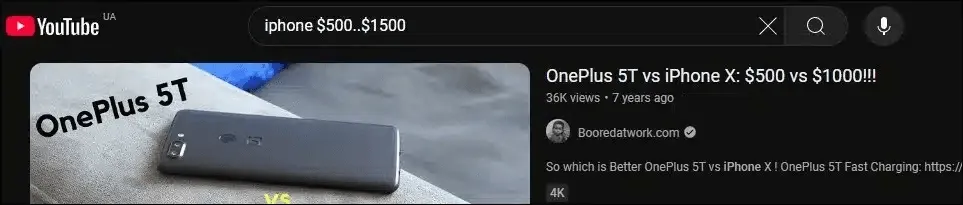
intitle: allintitle: description:
As the names suggest, these operators tell YouTube where to look when processing a search query.
allintitle: is used for precise matching within video titles. It returns videos whose titles contain all of the words specified after the operator. If you know an exact phrase that is likely to appear in a title, this operator can be more effective than quotation marks.
intitle: also searches within video titles, but it applies only to the word or phrase directly following the operator. Any other words in the query are treated as normal search terms and are not restricted to the title field.
description: searches within video descriptions. To prevent YouTube from “guessing” too much, it’s important to remember that search results can become quite broad and approximate in this mode. For that reason, when you are confident about specific terms, it is better to use quotation marks to lock in exact wording.
If the context is less clear, those terms can be separated with asterisks (*) as placeholders, in case they do not appear next to each other in the exact same order.
It is also worth keeping in mind that channel owners often use video descriptions not only for summarizing content, but also for adding external links, including social media profiles. Because of this, combining precise search techniques with the description: operator can be useful for finding related social accounts.
This approach can also help identify channels that mention or promote a specific product or resource: even if it is not the main focus of the video, its name or link is often still included in the description.
before: after:
These operators allow you to search by publication date. In YouTube search filters, date-based filtering is limited to preset ranges such as this year, this month, this week, or today, with no option for custom time intervals. Because of this limitation, these operators become essential when you need to search within a specific time range.
The before: operator sets the upper bound of the date range, defining the latest publication date for videos to be included in the results. The after: operator sets the lower bound, defining the earliest publication date.
For example, after:2021-01-01 before:2021-12-31 will return videos published during 2021. Dates must be specified in the YYYY-MM-DD format.

Searching YouTube Videos on Google
As mentioned earlier, YouTube uses internal algorithms to rank and filter content in its search system. Because of this, some videos may not appear at all, or their visibility may be significantly reduced.
In OSINT workflows, this becomes a limitation, since the most relevant material is often the hardest to surface through YouTube’s native search.
For that reason, if you suspect that a video is being demoted, filtered, or simply not properly surfaced in YouTube search, it is often more effective to look for it through Google instead.
For example:
site:youtube.com "osint * telegram" inurl:watch
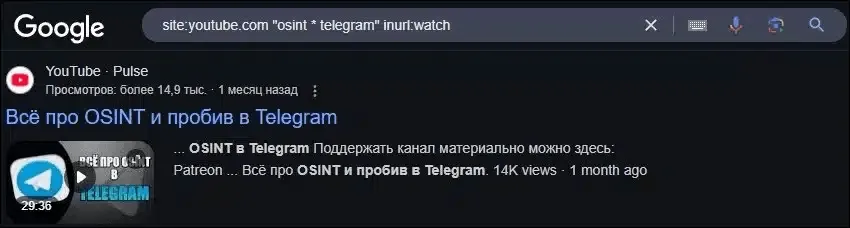
One important nuance: n this example, I used inurl:watch to target actual videos specifically, since any YouTube video URL contains the word watch, whereas playlist or channel URLs do not.
It is also worth remembering that Google provides an advanced video search feature:
https://www.google.com/advanced_video_search
The principle is the same as in standard advanced search. You enter your keywords, then refine the query using additional parameters such as language, date, and quality, and run the search.
Additional YouTube OSINT Tools
Now let’s look at third-party tools that can help extract additional information and provide deeper insights.
⨠ https://mattw.io/youtube-metadata
This tool is designed for analyzing metadata of a specific video as well as the channel it belongs to. You simply paste a video link, and it returns details such as the publication date and time, description, tags set by the creator, video category, language, and video ID. It also provides basic engagement statistics, including view count, likes, and comments. In some cases, it may also display additional attributes such as advertising indicators, recording quality, and geolocation data.
The tool allows you to download the video thumbnail and includes links for reverse image search based on both the thumbnail and individual video frames. It also offers options to check web archives and perform Google searches, including queries based on the video ID, which can be particularly useful if the video has been removed or is no longer accessible.
A separate section focuses on channel-level data, including the profile picture, banner, description, tags, country, and even a Google Analytics ID. It also provides links to search the channel in web archives and on Google using channel identifiers.
⨠ https://mattw.io/youtube-geofind/location
Location-based video search. On the map, you select a specific location, define a search radius, and optionally apply additional filters if needed. The tool then returns all videos with geotags from that area. Results are displayed both visually on the map and as a structured list.
⨠ https://ytbcomments.com
This is a tool for collecting and downloading video comments. You paste a video link, and it retrieves all associated comments. Its main advantage is that the data can be exported as a spreadsheet, making it easier to analyze, filter, and process at scale.
⨠ https://filmot.com
Subtitle search. Enter the phrase you want to find. If you know the exact phrase used in a video, you can place it in quotation marks for a more precise match. You can also limit the search to specific channels if needed. The tool supports searching both automatically generated YouTube captions and subtitles uploaded by creators.
Search results include the video title, channel name, language, and a snippet of subtitles where the query appears. Additional filters are available, including category, language, country, and publication date. You can also adjust sorting, for example by newest or oldest content, or by popularity metrics such as views and likes.
One important limitation is that this tool does not query YouTube directly. Instead, it collects subtitles independently, which means there may be delays in indexing, and some videos or entire channels may be missing from the dataset.
⨠ https://findyoutubevideo.thetechrobo.ca
This is a tool for searching deleted videos. You enter a link to a removed video, and it attempts to find the video itself or related information across other sources. While the actual video cannot always be recovered, metadata and subtitles are often successfully retrieved.
So, that’s it
Well, we’ve covered how YouTube indexes videos, how its search system works, and which search operators you can use and how to apply them.
Now it’s up to you to practice these techniques. With some hands-on experience, you’ll be able to significantly improve both the precision and effectiveness of your YouTube OSINT workflow, taking it to a higher level.